
What you can do
The panel shows a folder tree of everything in the task — what you uploaded, what your coworker produced, and anything it organised into folders along the way. From a file’s menu:- Open it in place — see Previewing files
- Download it
- Rename it
- Delete it
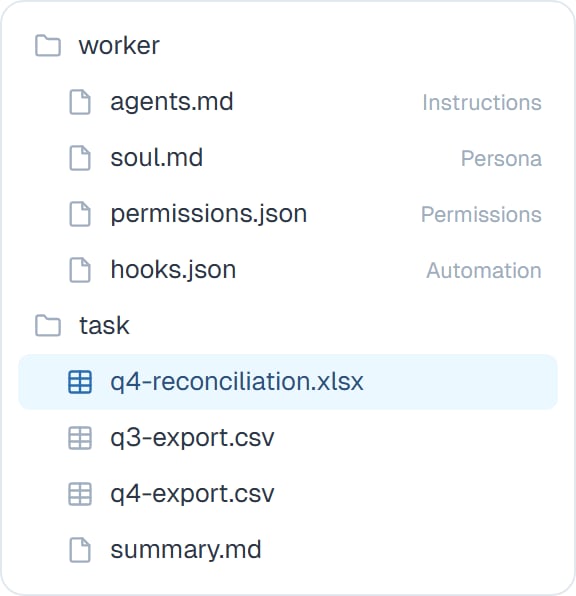
The coworker's own files at the top, this task's files below. The grey labels tell you what each control file is for.
Editing a file yourself
Text-based files open in an editor, so you can make a change yourself rather than asking. Handy for fixing one figure in a report or adjusting a line in a skill without a round trip.Editing a coworker’s control file — its instructions, personality, permissions — takes effect on the next task. A task already running keeps what it started with. The editor tells you this at the time.
Good to know
Common questions
How do I get a result out?
How do I get a result out?
Download it from the panel. Or ask your coworker to email it, if it has an email app connected or Talking to people set up.
Can I upload a folder?
Can I upload a folder?
Upload the files and your coworker can organise them. It’s comfortable working across a set of files in one task.
Why can I not see a file I uploaded before?
Why can I not see a file I uploaded before?
It belongs to the task you uploaded it into. See Files overview for the difference between task and coworker files.
Is there a size limit?
Is there a size limit?
Ordinary business exports are fine. For a very large file, say what you’re after up front so your coworker works through it rather than trying to hold it all at once.
Next steps
Previewing files
Open a file in place.
Seeing what changed
Check an edit.
Attaching and mentioning
Point at a file in chat.
Files overview
Task files versus coworker files.