
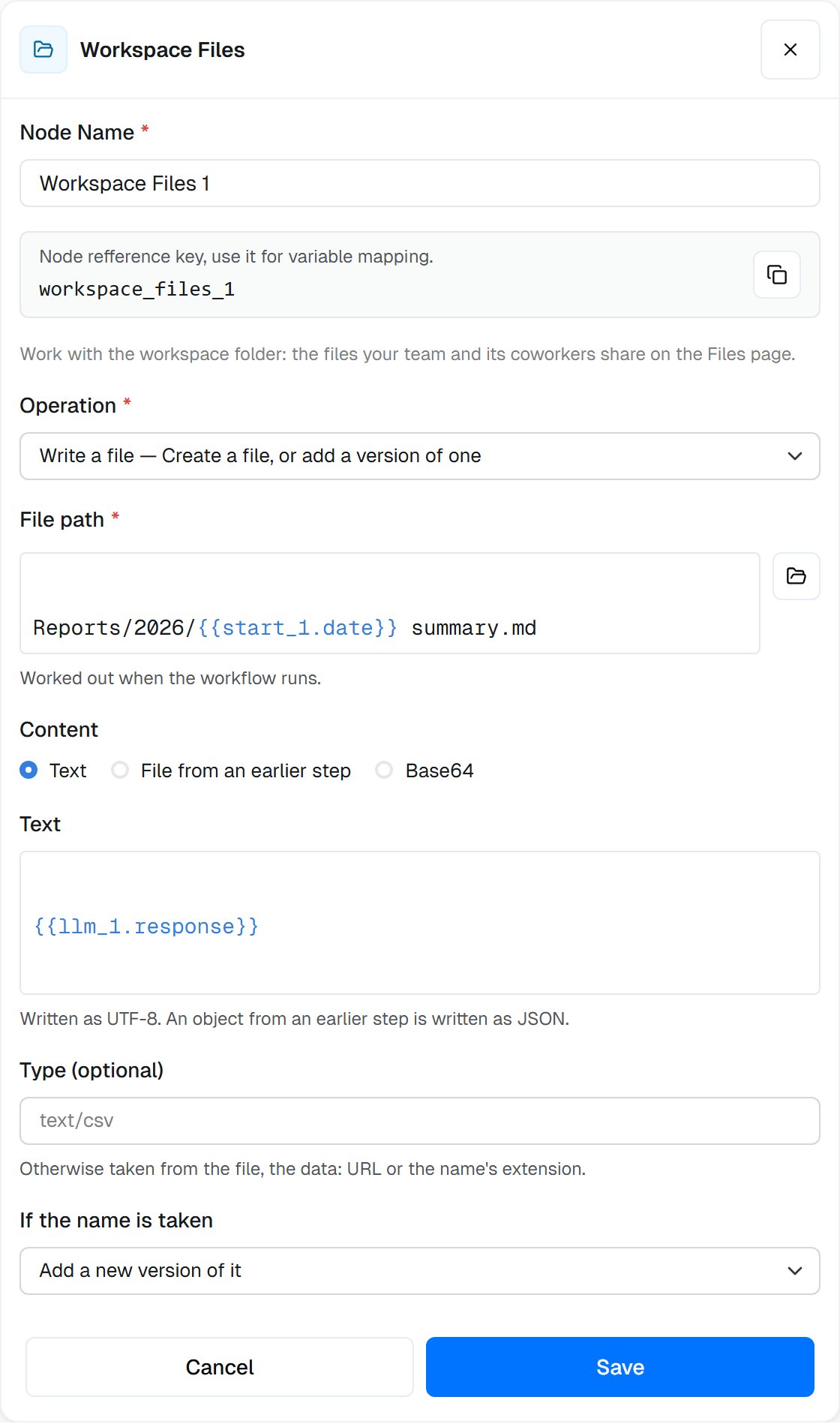
A Workspace Files step that saves an AI summary as a file, adding a new version when the file already exists.
The node is offered in the step picker only where your workspace has Workspace files. See Workspace files for the folder itself.
When to use
- Keep a result as a file: a daily report, an export, an AI summary that people open on the Files page
- Pick up files people drop in a folder: list
Inboxand loop over what’s there - File things away: move a processed invoice to
Inbox/Done, or rename it - Keep a copy before a risky change: copy a database to
Backupsbefore a step rewrites it - Tidy up: move old files to the Trash, where they can be restored for 30 days
Operations
Pick one operation per step. The form shows only the settings that operation uses.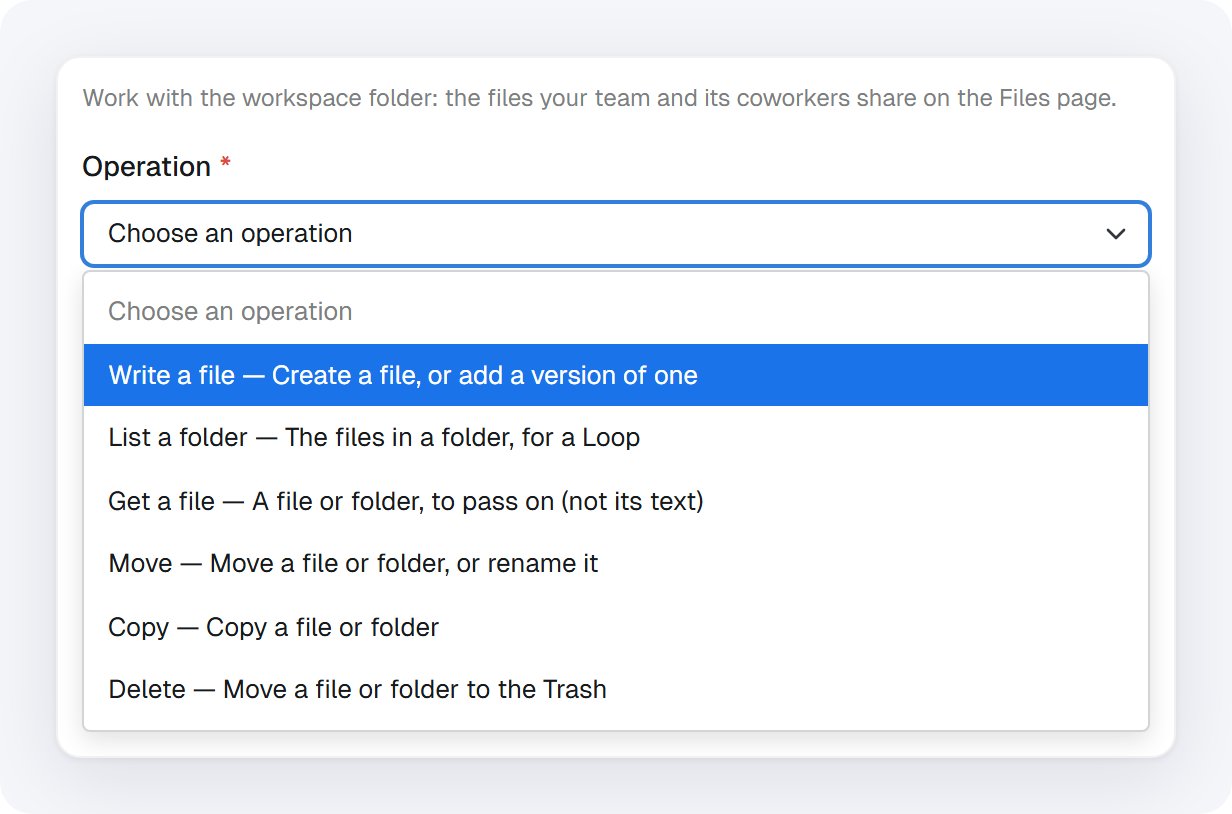
The six operations, each with what it does.
Write a file
Give a File path, including folders. Folders that don’t exist yet are created. Then choose where the Content comes from:- Text: written as UTF-8. An object from an earlier step is written as JSON.
- File from an earlier step: one file, as a single reference, for example
{{gmail_1.files[0]}}or{{execute_code_1.files[0]}}. - Base64: raw base64, or a
data:URL.
data: URL or the name’s extension.
If the name is taken decides what happens when a file already has that name:
Writing the same content again makes no new version (
outcome unchanged). Rewriting one file several times in the same run within 10 minutes keeps one version for that run (outcome coalesced), so a Loop that rewrites a file doesn’t fill its history.
List a folder
Give the Folder to list, or leave it empty for the workspace folder itself. Narrow the list with Only names like (*.pdf, report-??.csv or *.{csv,tsv}; matched against the name only, ignoring case) and Include subfolders. At most caps the list: 100 files by default, 1,000 at most.
files holds the matching files, ready for a Loop. truncated is true when more files matched than the list returned.
Get, move, copy and delete
These four act on one file or folder:- Get a file passes the file (or folder) on to later steps. Nothing is read.
- Move puts it in a Destination folder (empty for the workspace folder; a missing folder is created), and can give it a New name.
previousPathsays where it was. Moving onto a name that’s already taken fails. - Copy makes a copy in the destination folder, with an optional new name. If the name is taken: Fail the step (default) or Keep both (“name (copy).ext”): a copy kept beside a taken name is called “name (copy).ext”, then “name (copy 2).ext”.
- Delete moves it to the Trash, where it can be restored for 30 days. A workflow never deletes a file for good.
Choosing the file
Find it by offers two ways:- Path: a path in the workspace folder, like
Inbox/Invoices/invoice-1043.pdf. Names match whatever their case. - Id or earlier step: a file’s id, or a workspace file an earlier step passed on, like
{{workspace_files_1.file}}or{{loop_1.currentItem}}. An id keeps pointing at the same file after it is renamed or moved.
{{…}} values from earlier steps, worked out when the workflow runs. Or click the folder button beside the field to pick from the workspace folder. Type part of a name to find it, or a path like reports/q3 to look in another folder.
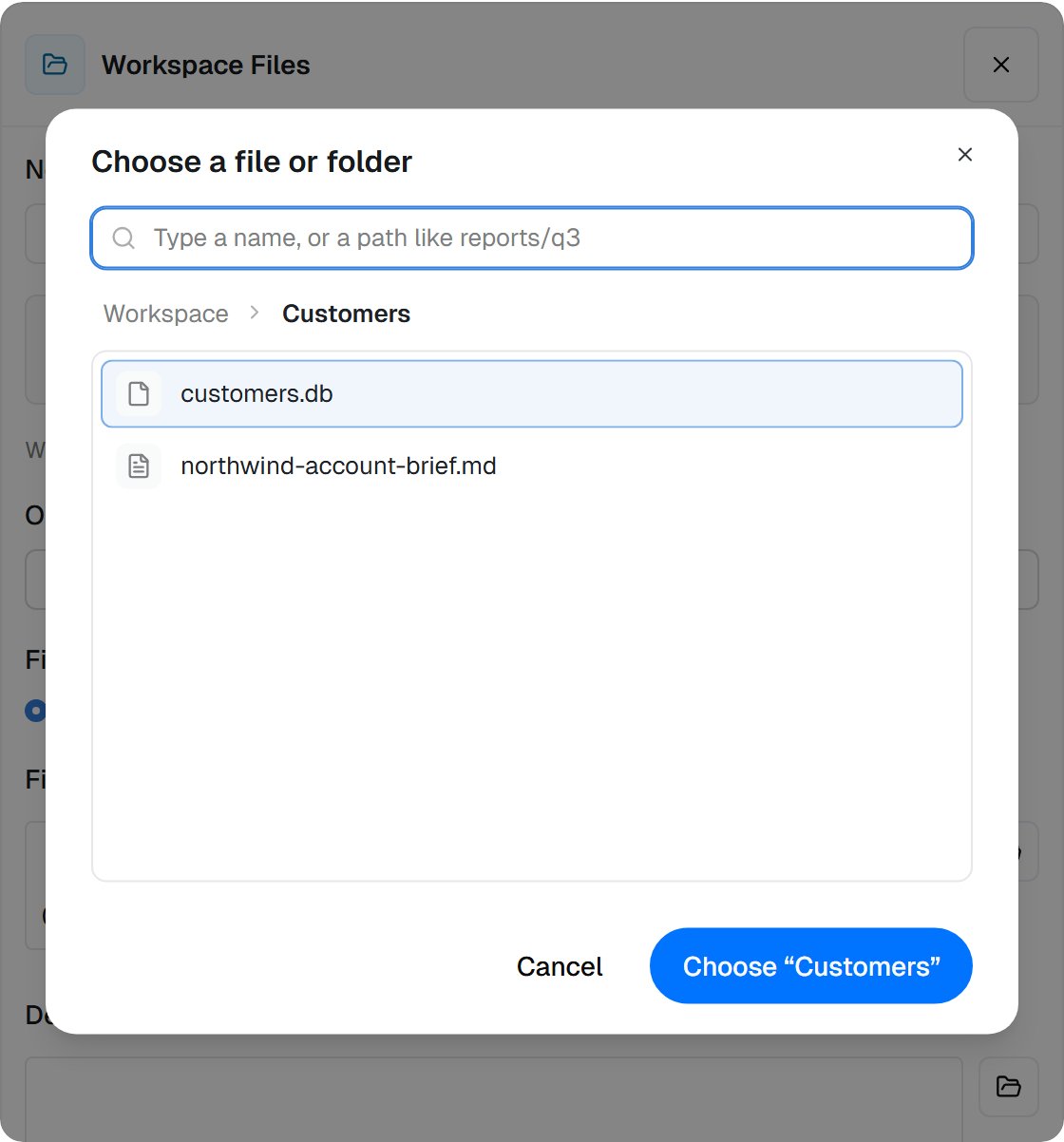
The picker opens in the folder of the path you typed. Pick a file, or choose the folder itself.
Examples
Save an AI summary as a file
Save an AI summary as a file
After an LLM step, add a Workspace Files step:
- Operation: Write a file
- File path:
Reports/2026/{{start_1.date}} summary.md - Content: Text,
{{llm_1.response}} - If the name is taken: Add a new version of it
File a processed invoice away
File a processed invoice away
At the end of an invoice workflow started by File Added to Folder:
- Operation: Move
- Find it by: Id or earlier step,
{{file_added_to_folder_1.file}} - Destination folder:
Inbox/Done
Process every file in a folder
Process every file in a folder
- Workspace Files, List a folder: Folder
Inbox, Only names like*.pdf. - A Loop over
{{workspace_files_1.files}}. - Inside the loop, Read File with Read: Workspace file, Find it by: Id or earlier step,
{{loop_1.currentItem}}. - Then a Workspace Files Move of
{{loop_1.currentItem}}(Id or earlier step) toInbox/Done.
Copy a database before a risky change
Copy a database before a risky change
Before an Execute Code step that rewrites
Customers/customers.db:- Operation: Copy
- File or folder:
Customers/customers.db - Destination folder:
Backups - If the name is taken: Keep both (“name (copy).ext”)
Backups/customers.db. Each later run adds another: customers (copy).db, customers (copy 2).db and so on. Every copy counts toward your workspace’s storage. For a version you want to keep, a checkpoint is often enough.Passing files on
Thefile output is a workspace file that later steps can use directly:
- Read File reads its text
- an LLM step can take it as an attachment
- an HTTP Request can send it as a form field
- another Workspace Files step can act on it by id
When things go wrong
Settings
string
required
write, list, get, move, copy or delete, shown as Write a file, List a folder, Get a file, Move, Copy and Delete.string
Write a file: the file to write (File path), folders included. List a folder: the Folder to list; empty is the workspace folder. Get, move, copy and delete: the File or folder, when Find it by is Path.
{{…}} allowed.string
default:"path"
Find it by, for get, move, copy and delete:
path or id (Id or earlier step).string
The file or folder when Find it by is Id or earlier step: an id, or a workspace file from an earlier step such as
{{workspace_files_1.file}}.string
default:"text"
Content for a write:
text, file (File from an earlier step) or base64.string
The Text to write. An object from an earlier step is written as JSON.
string
The File to write: one file from an earlier step, as a single reference.
string
The Base64 content to write: raw base64, or a
data: URL.string
Type (optional), like
text/csv.string
If the name is taken. Write:
version (default), keep_both, skip or fail. Copy: fail (default) or keep_both.string
Only names like (optional), for a list: a pattern such as
*.pdf, matched against the name only, ignoring case.boolean
default:"false"
Include subfolders, for a list.
number
default:"100"
At most, for a list: 1 to 1,000 files.
string
Destination folder, for a move or copy. Empty is the workspace folder; a missing folder is created.
string
New name (optional), for a move or copy.
Outputs
Which outputs a step offers depends on its operation.boolean
Whether the operation succeeded. Every operation.
string
The operation that ran:
write, list, get, move, copy or delete.object
Write, get, move, copy and delete: the file written, found, moved, copied or deleted, with
fileId, versionId, path, name, size, mimeType, revision, createdAt and updatedAt. Pass it to Read File, an LLM attachment or an HTTP Request form field. file.path, file.name and file.fileId are offered on their own too.object
List: the folder that was listed. Get, move, copy and delete of a folder: the folder itself, instead of
file.string
Write:
created, versioned, coalesced, unchanged or skipped.string
Move: where the file or folder was before.
array
List: the matching files, ready for a Loop.
files[0] is the first.number
List: how many files were returned.
boolean
List:
true when more files matched than the limit returned.boolean
Delete:
true once it is in the Trash.boolean
Delete: whether it is in the Trash.
Related
File Added to Folder
Start a workflow when files arrive in a folder.
Read File
Read the text of a workspace file.
Workspace files in workflows
Every way a workflow works with the shared folder.
SQLite database guide
Keep a database in Workspace files and update it from code.