
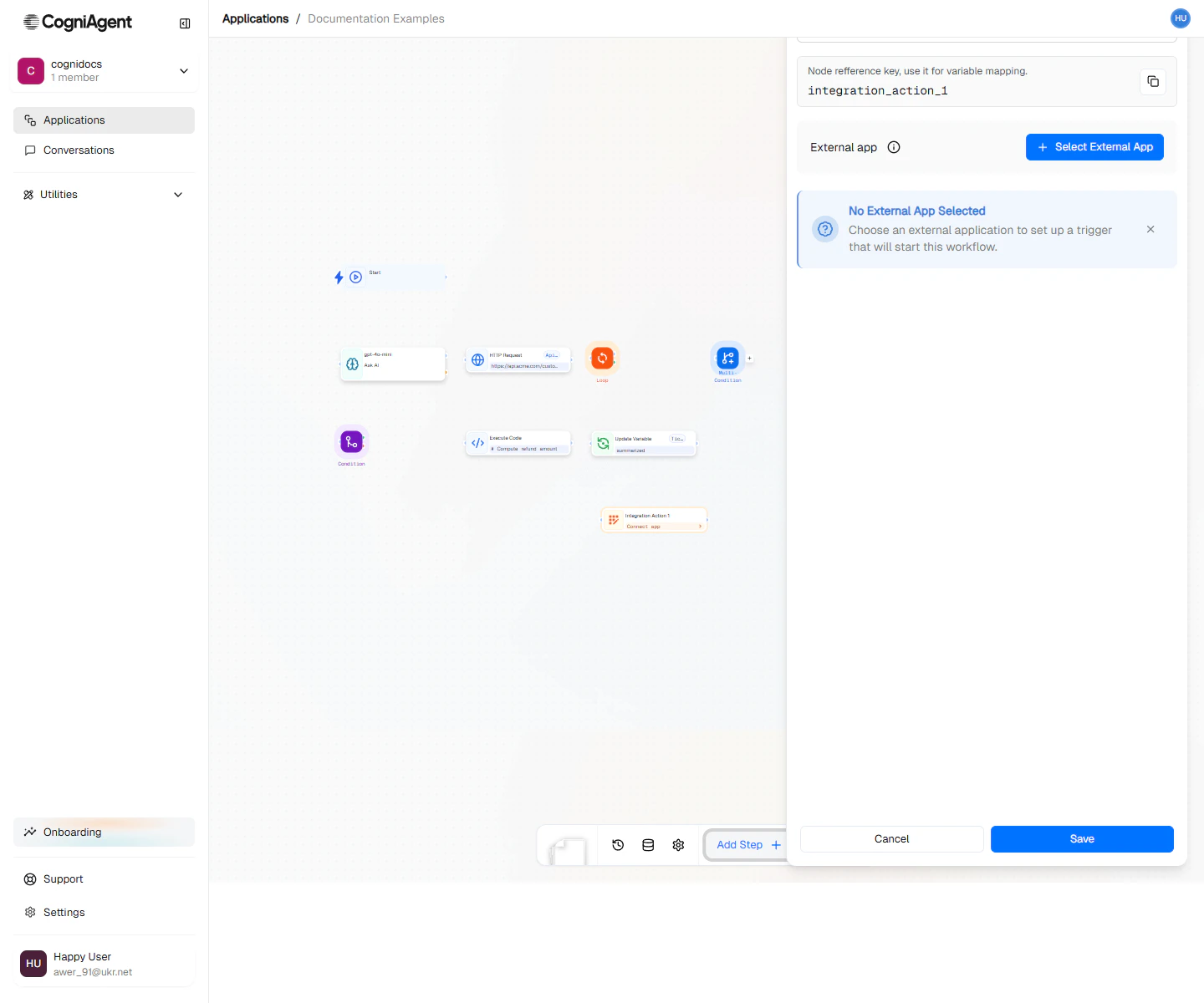
Integration Action configuration — pick the app, the connection, the specific action, then fill in its parameters.
When to Use
- Emails - Send, reply, organize, or move emails in Gmail/Outlook
- Team chat - Post messages to Slack, Teams, or Discord
- Spreadsheets - Add rows to Google Sheets, update Airtable
- CRM - Create contacts in HubSpot, update Salesforce
- Project tools - Create tasks in Asana, update Jira tickets
- Any integrated app - If it’s in the list, you can automate it
This is for apps already connected with CogniAgent. For websites or services not in the list, use the HTTP Request node instead.
Set it up
1
Add the step with its app
In the Add step picker, type the app’s name, for example “gmail”, and choose the app. The step is added with that app already chosen. You can also add Integration Action and click Choose an app.
2
Choose an action
The step panel lists the app’s actions under Choose an action, with your workspace’s featured actions first. Type to search; Enter picks the first match.
3
Fill in the fields
Connect your account if asked, then fill in the action’s fields. To pick a different action later, click Change action at the top of the panel. Change app and Remove app are in its menu.
Common Actions by App
Gmail
Slack
Google Sheets
HubSpot
Example: Support Email Workflow
Automatically respond to support emails and log them:1
Receive the email
Use App Trigger (Gmail) to trigger on new emails to support@company.com.
2
Classify the email
Use an LLM node to categorize as: billing, technical, general.
3
Log to spreadsheet
Add an Integration Action node:
- App: Google Sheets
- Action: Append Row
- Spreadsheet: Support Log
- Values:
4
Send auto-reply
Add another Integration Action node:
- App: Gmail
- Action: Reply to Email
- Thread ID:
{{event_from_app_1.email.threadId}} - Body:
Thank you for contacting support. We've received your {{llm_1.response}} inquiry...
5
Notify the team
Add a final Integration Action node:
- App: Slack
- Action: Send Message
- Channel: #support
- Message:
New {{llm_1.response}} ticket from {{event_from_app_1.email.from}}
Example: Lead Capture to CRM
When a form is submitted, add the lead to your CRM:Example: Automated Reporting
Generate and distribute a daily report:Connecting Your Apps
Before you can use this node, connect your apps:- Go to Settings > Integrations
- Find the app you want to connect
- Click Connect and log in to authorize it
- Give the connection a name (helpful if you have multiple accounts)
Using Data from Previous Steps
You can use information from earlier in your workflow:What If Something Goes Wrong?
Things can fail because:- Your login expired and needs reconnecting
- You’re sending too many requests too fast
- Some required information is missing
- The internet had a hiccup
Rate Limits
Different apps have different rate limits:CogniAgent handles rate limiting automatically when possible, queuing requests to stay within limits.
Tips
Settings
string
default:"Integration Action"
What to call this node (shown on the canvas).
string
default:"external_api_1"
A short code to reference what this node returns.
string
required
Which app to use (Gmail, Slack, Google Sheets, etc.).
string
required
What you want to do in that app. The options change based on which app you choose.
string
required
Which account to use (if you’ve connected multiple accounts for the same app).
object
The details for your action. The form shows you what’s needed based on what you’re doing. Choose Set each field to fill them in yourself, or Let AI fill fields to have AI fill them from the data the step receives. Switching between the two keeps what you typed in each.
Outputs
Outputs vary by app and action. Common patterns:boolean
Whether the action completed successfully.
object
The full response from the API, structure depends on the action.
Email Actions
messageId- ID of the sent/modified messagethreadId- Conversation thread ID
Slack Actions
ts- Message timestamp (used for threading)channel- Channel IDpermalink- Link to the message
Google Sheets Actions
updatedRange- Cells that were modifiedvalues- Row data (for get/find actions)
Related Nodes
HTTP Request
For APIs not in the integration list.
Custom actions
Call any part of a connected app’s API when no action fits.
LLM Integrations
Let AI decide which app actions to call instead of picking one yourself.
App Trigger
Trigger workflows from app events.
Integrations
See all 2,700+ available integrations.
Channels
Communication channel details.