
When to use it
- Visitors should be able to chat without logging in.
- You want a branded chat bubble on your marketing site or in-app.
- You want voice support (optional) alongside text.
1. Add the Widget channel
Open the agent and click Channels in the rail on the left of the canvas. Click Add channel and pick Widget. The form for a new widget opens:
Below the settings, Put it on your website walks you through three steps: ① Copy the code, ② Preview and ③ Check it’s live. The code and the live check wait until the channel is added.
Click Add channel. Nothing is saved until you do. The widget then stays open on its install steps, with its code ready.
To change the settings later, click the widget in the channel list, edit, and click Save.
2. Customize the widget
Step ② Preview shows the widget the way your visitors will see it, close enough to judge the text and colors (your site’s own styles can change it slightly). Click Customize Widget under the preview to open the appearance dialog.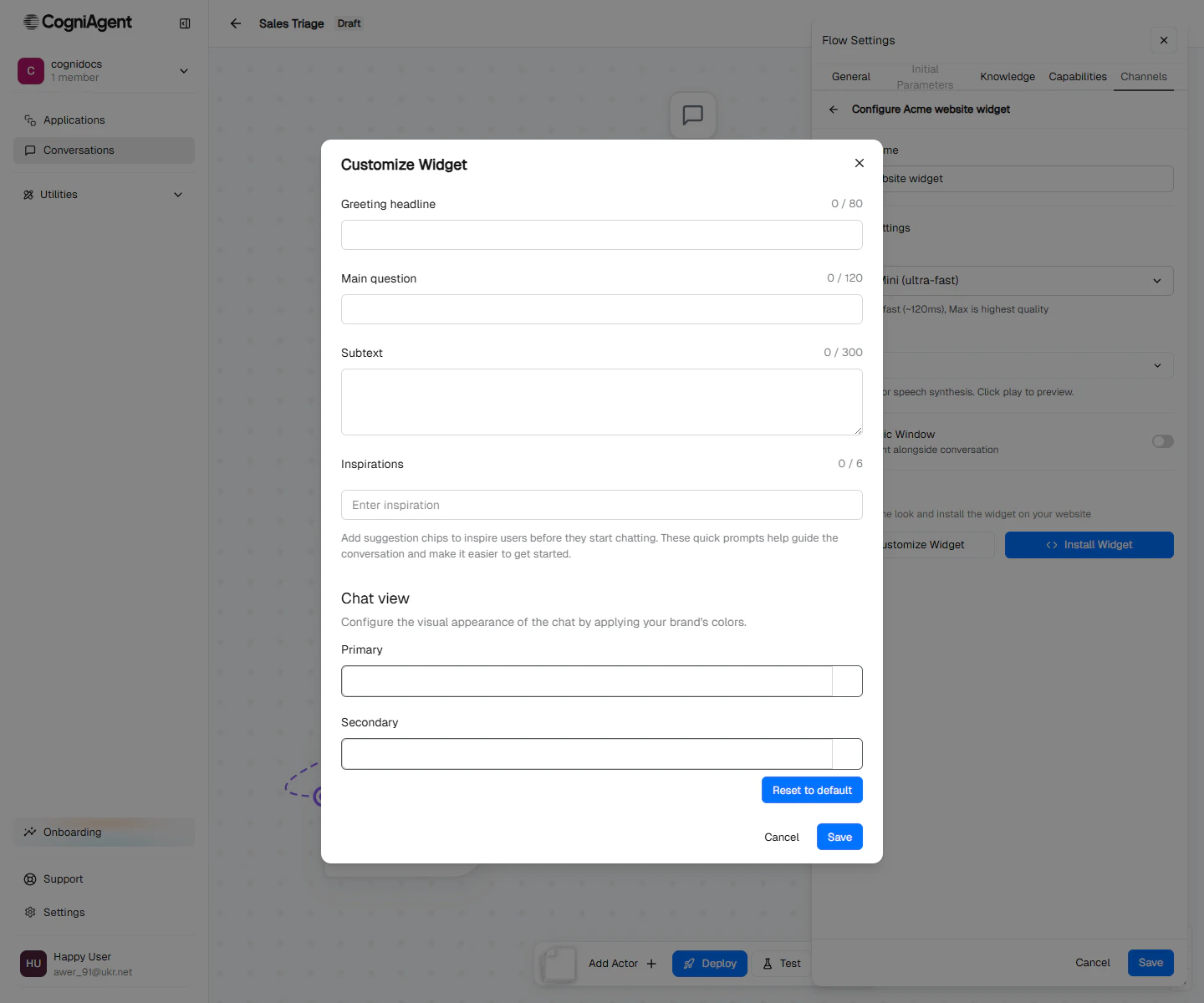
Customize Widget — the text visitors see before they type, the suggestion chips, and the brand colors.
Click Save when you’re done. On a widget you’ve already added, that saves the look right away (Widget look saved). On a new one, the look is kept and saved when you add the channel. The preview updates to match.
On a live agent, visitors see the look from your last deploy until you deploy again, and the preview says so.
3. Put it on your website
① Copy the code
Click Get the code to open the Install Widget on Your Site dialog with the embed snippet for your website.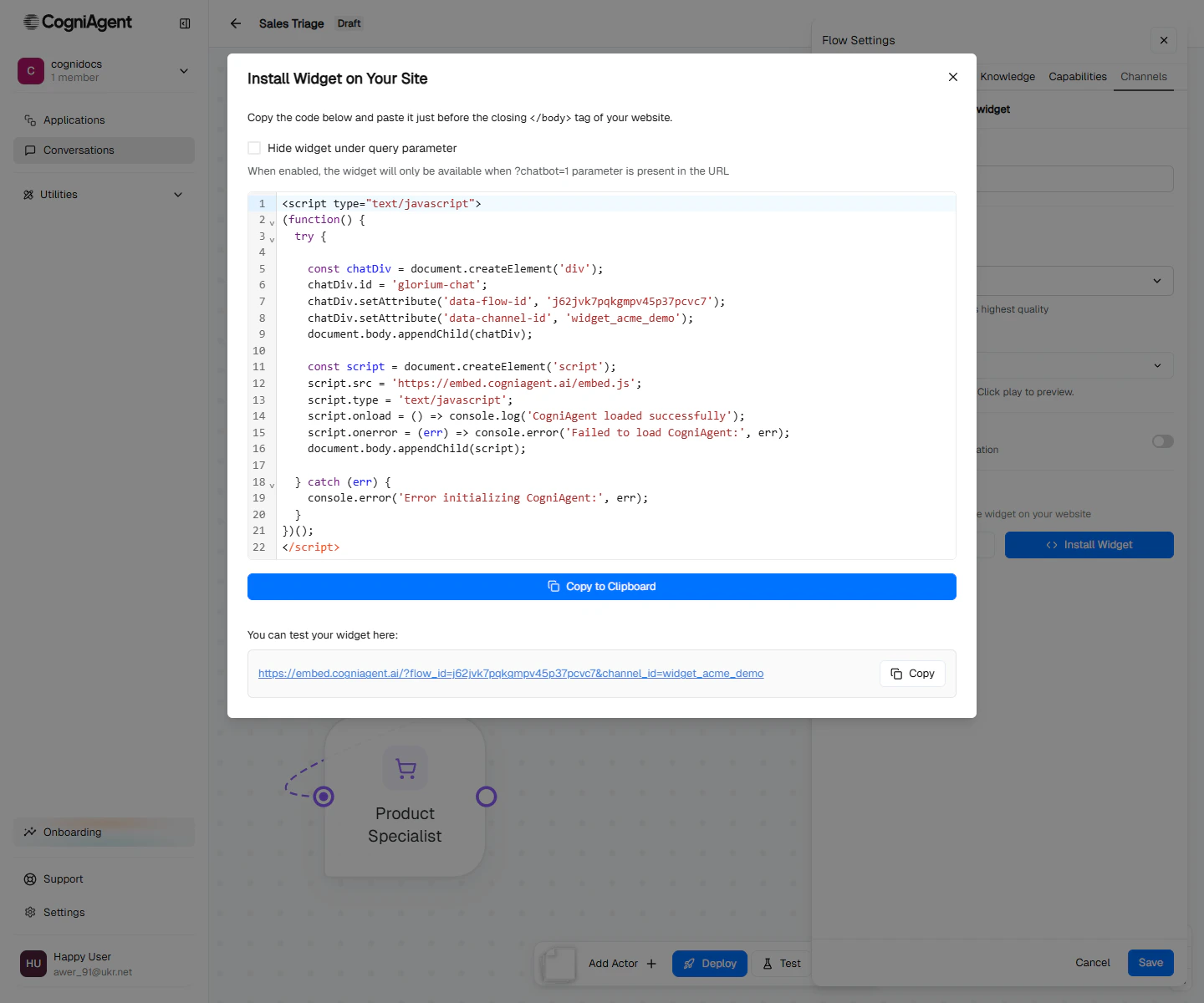
The install dialog — the snippet to paste before the closing tag, plus a hosted test URL.
</body> tag, on every page that should show the widget. It looks like this (the data-flow-id and data-channel-id are pre-filled for your agent):
Hide under a query parameter
The Hide widget under query parameter checkbox restricts the widget to URLs containing?chatbot=1. Useful while you’re previewing the widget on a live site without exposing it to everyone yet.
Test before installing
The install dialog also shows a hosted test URL —https://embed.cogniagent.ai/?flow_id=…&channel_id=…. Click the link to open the widget standalone, exactly as your visitors would see it once embedded.
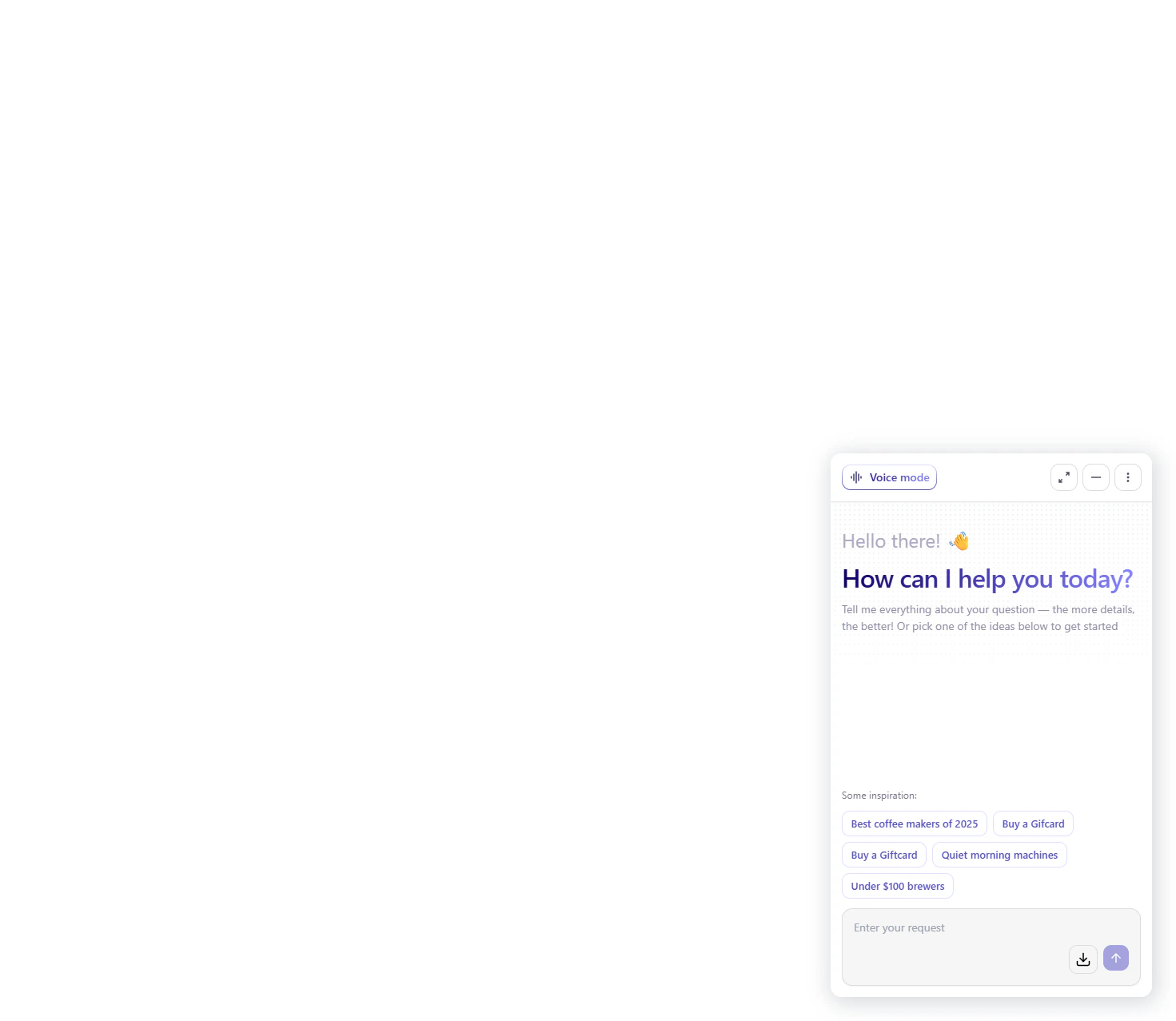
The hosted test page — the widget opens full-bleed so you can verify branding and how the conversation runs before going live.
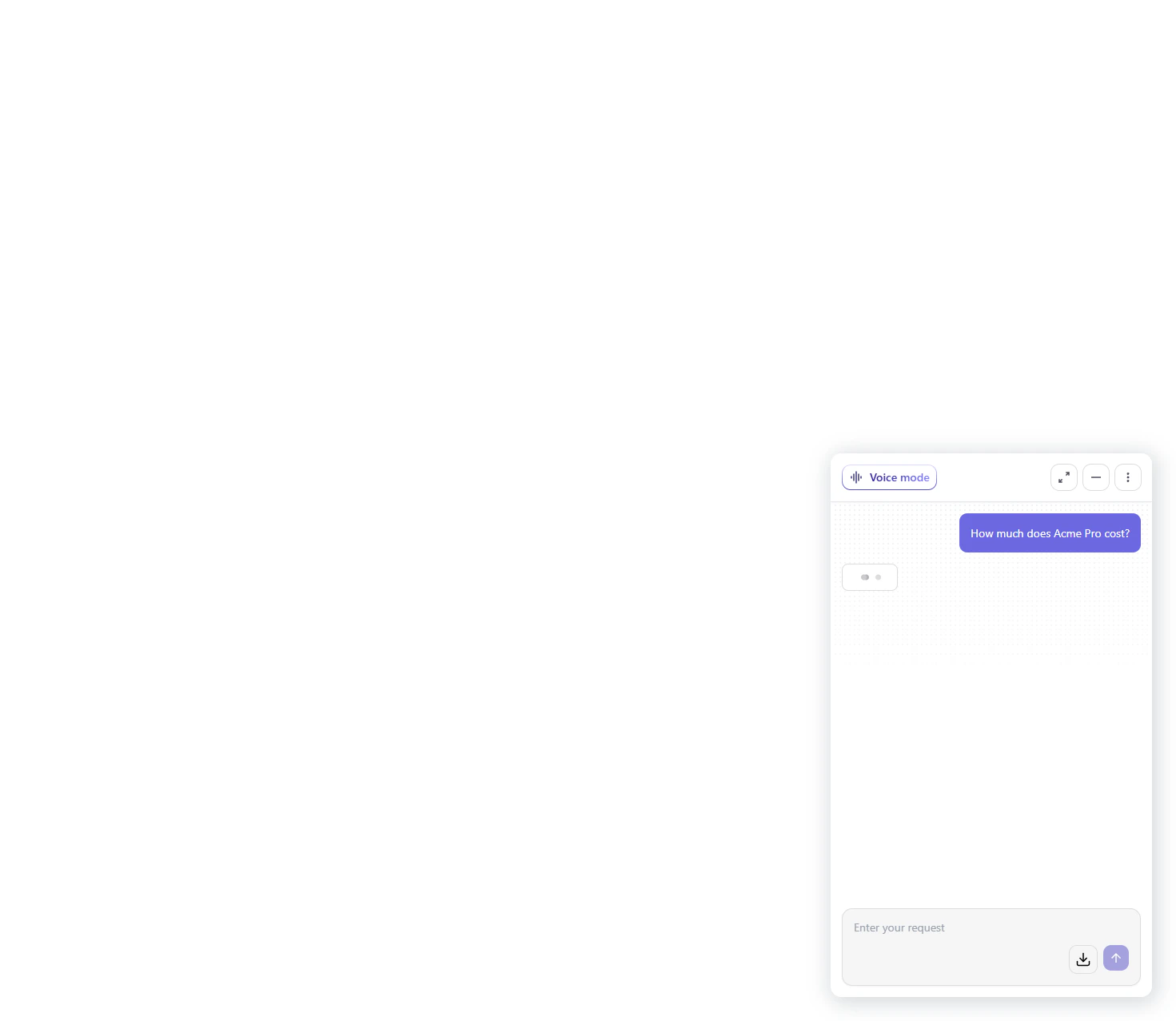
A live conversation in the widget — the Triage actor handed off to the Pricing Specialist.
Pass details about the visitor
If your page already knows who the visitor is — a candidate’s name and job, an order number, a plan — the agent can start the conversation with it. Define Initial Parameters on the agent and add one line to the snippet. See Pass details to the widget.② Preview
The preview draws the widget with your greeting, question, subtext, suggestion chips and colors. While the agent isn’t deployed, it shows the banner visitors see too: Agent is offline. See Customize the widget.③ Check it’s live
Once the code is on your site, this step tells you whether visitors are reaching the widget:
The check looks for a real conversation on this widget (tests don’t count), because opening a page with the widget isn’t recorded and a conversation is. While it waits on a live agent with undeployed changes, it also offers Deploy changes: a widget added after the last deploy can’t be reached until you deploy again.
The Deploy button here works like the one in the rail: with issues that block a deploy, it opens Issues instead.
An Outbound agent’s widget opens only from widget links, so its widget channel shows only the Preview, without the code or the live check.
4. Deploy
The widget only accepts traffic when the agent is deployed. Click Deploy in the rail (or in step ③) after the channel is added. The status changes from Draft to Live, and the embed script starts working on every page where it loads. Later changes to the widget channel are part of the agent’s draft too: they reach visitors when you deploy again.Remove a widget
Open the ⋮ menu on the widget’s row in the channel list and click Remove. The menu warns that sites that embed it will show it offline. A toast offers Undo. On a live agent, the widget goes offline with your next deploy.What visitors see
- A circular launcher button appears in the corner of every page where the script is loaded.
- Clicking it opens a panel showing the greeting, main question, subtext, and inspiration chips you authored.
- The visitor types — or taps a chip — and the conversation runs. Routing picks the right actor, replies come back in the same panel.
- Closing and reopening the widget within the same session preserves history. After session expiry (a few hours of inactivity) the visitor starts fresh.
Inviting someone to a conversation
An anonymous visitor has to open the widget first — you can’t message them. To invite a specific person, create a widget link: a personal link to a conversation that already knows who they are, where the agent can speak first. Send the link yourself, or let a workflow email it.Hand-off to a human
For escalation, the typical pattern:- Add a “Human Escalation” actor to the flow.
- Give it a capability that posts to Slack or Teams (e.g. Slack
send-message). - When routing picks it, the actor posts the transcript and a link to the live session to your support channel.
- Your team picks up the conversation from the Conversations history view.
Next
Deploy an agent
Take the widget live so real visitors can chat with it.
Add Gmail or Outlook alongside the widget for follow-ups.
Capabilities
Give actors tools so the widget can actually do things — book meetings, look up orders, post to Slack.
Conversations history
Review every widget conversation, routing decisions, and tool calls after the fact.