
responder and initiator.
Inbound (Responder)
The agent waits for inbound messages on configured channels. Most common.
Outbound (Initiator)
The agent starts conversations — your team or a workflow kicks it off.
Inbound (Responder)
The agent sits idle until someone writes in. When a new message arrives on a configured channel, the agent opens a new conversation and routes the user into the first actor. Use it for:- Customer support inboxes (Gmail, Outlook)
- A web chat widget on your site
- Slack DMs to a support bot
- A WhatsApp business number
- A help-desk Teams channel
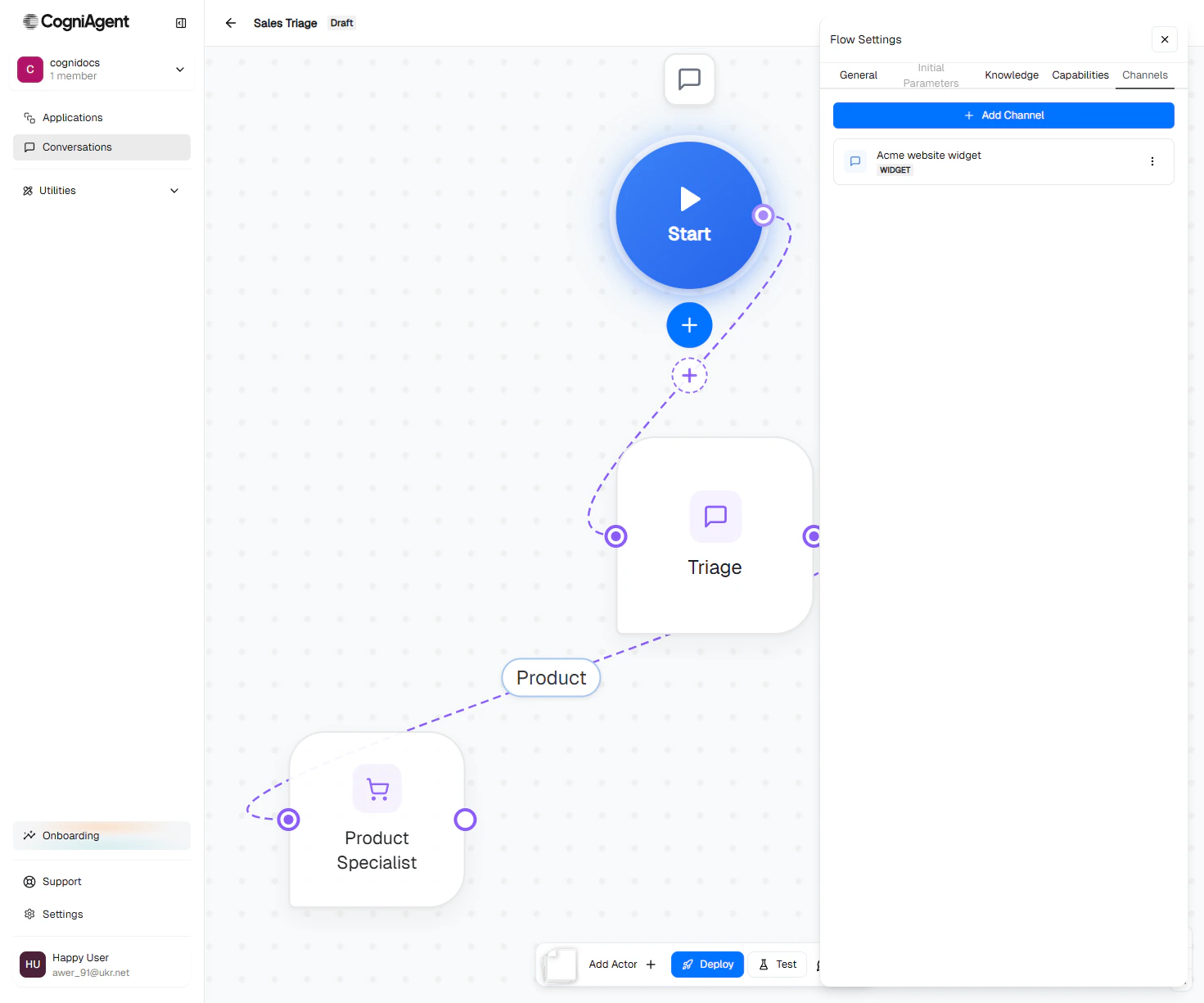
- Add one or more channels: click Channels in the rail.
- Click Deploy in the rail on the left of the canvas.
- The platform starts listening on those channels. Every new inbound message opens a conversation.
Outbound (Initiator)
The agent doesn’t listen for anything. It runs only when you start a conversation — manually from the editor, from a workflow node, or via API. Use it for:- Outbound sales calls / SMS campaigns
- Proactive customer outreach (“your subscription renews next week”)
- Multi-step onboarding sequences that fire after a signup webhook
- Re-engagement campaigns
- Switch the agent’s execution mode to Outbound in Agent settings.
- Configure an outbound-capable channel (Gmail, Outlook, Slack DM, SMS, Phone).
- In the rail, click Start Conversation.
- Pick a channel, enter the recipient (email / phone / Slack user id), and optionally set initial parameters.
- The agent opens the conversation and the first actor sends an opener.
Picking a mode
Choose Inbound if...
Choose Inbound if...
- Users come to you — they email, they chat on your widget, they DM your Slack bot.
- You want the agent to be “always on” — handling whatever comes in.
- Customer support, help desks, lead capture from a form, inbound sales.
Choose Outbound if...
Choose Outbound if...
- You’re reaching out to users — outbound calls, scheduled emails, campaigns.
- The agent needs to be triggered by something — a CRM event, a date, a workflow.
- You want a record of who initiated each conversation and what task they were given.
What changes in the UI
The agents list shows each agent’s mode as Inbound or Outbound. In the editor, the rail on the left of the canvas changes with it:
Everything else — actors, routes, channels, capabilities — works the same in both modes.
Can an agent be both?
An agent is one mode at a time. You can switch the mode later (undeploy it first) — that’s fine when you want to repurpose an agent — but you can’t have it simultaneously listening for inbound traffic AND being a manual-start agent. If you genuinely need both behaviours, build two agents: an Inbound one and an Outbound one. They can share knowledge bases, share integrations, share global context patterns — they just don’t share lifecycle.Channel compatibility
Not every channel works in both modes. Quick reference:
The channel picker in the editor shows the right options for your agent’s mode.
Next
Channels overview
Pick and configure the channels your agent uses.
Deploy an agent
Take an agent live so it starts handling traffic.
Start a conversation
Start a conversation from an Outbound agent.