
How it works
Each action you enable becomes a function underintegrations:
Code, LLM or Integration Action?
All three can call the same apps. The difference is who decides, and how many calls one step can make.Set up integrations
1
Open the Integrations section
In the Execute Code node’s panel, find Integrations above the code editor and click Configure.
2
Add an app
Click Add Integration and browse or search the catalog. Pick the app the code needs.
3
Choose a connection
Pick one of your existing connections, or click Connect to authorize a new account. Every call the code makes runs on this account. See Integrations to manage connections.
4
Pick which actions to enable
Tick only the actions the code actually calls. Only enabled actions exist as functions.
5
Save and write the code
Save. Under the code editor, Integration functions now lists every function you can call. Click one to insert it, or type
integrations. to get suggestions.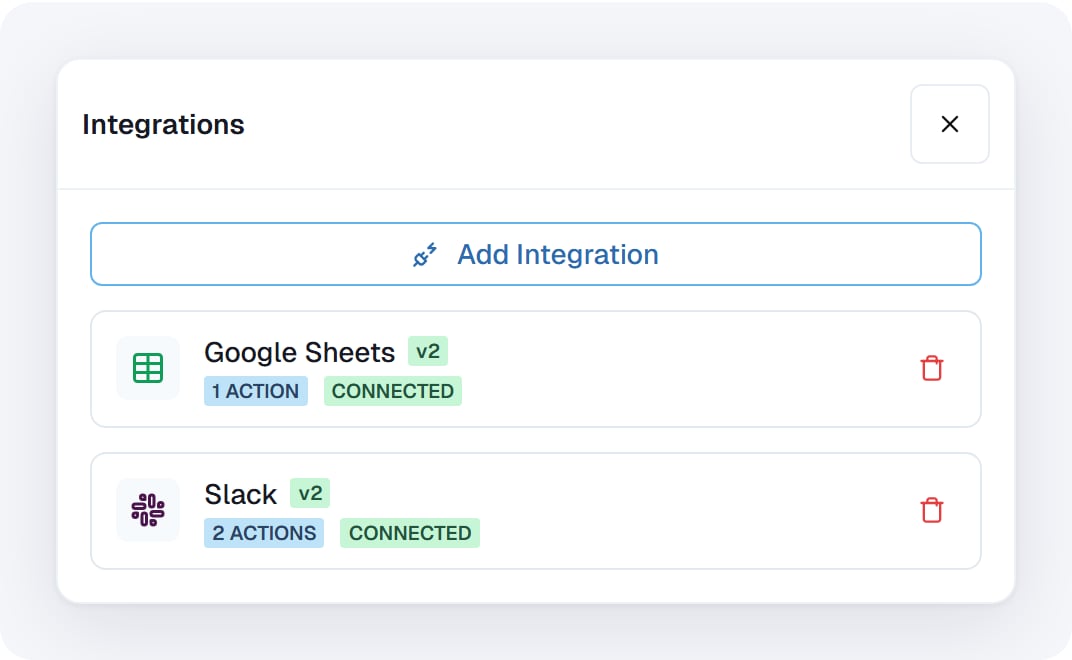
The Integrations list for a code node: each app with its enabled actions and connection health.
Calling a function
The name isintegrations.<app>.<action>. The editor shows the exact names; for example Composio Slack’s Send message is integrations.slack.send_message, and Pipedream Google Sheets’ Add Single Row is integrations.google_sheets.add_single_row.
Pass the action’s inputs by name, or as one dictionary:
TypeError that lists the accepted arguments. The editor underlines most of these before you run; see Write code with the editor’s help. In the code, help(integrations.slack.send_message) prints every argument and its description to stdOut.
Argument names follow each app’s own action inputs, exactly as the Integration Action node shows them. Some apps group their inputs — for example
path={...}, query={...} and body={...} — and those are passed as dictionaries.data, so a field you would read there as {{sheet_step.data.valueRanges}} is result["valueRanges"] here:
When a call fails
A failed call raisesIntegrationError. It carries .code (why, in one word) and .message (what happened):
If the code doesn’t catch it, the step fails and the error shows which call failed. To carry on past one bad record, catch it:
Connection health
The Integrations panel shows each app’s connection state, the same as on the LLM node. When an app can’t be called, Integration functions in the editor says so, and the editor marks calls to it: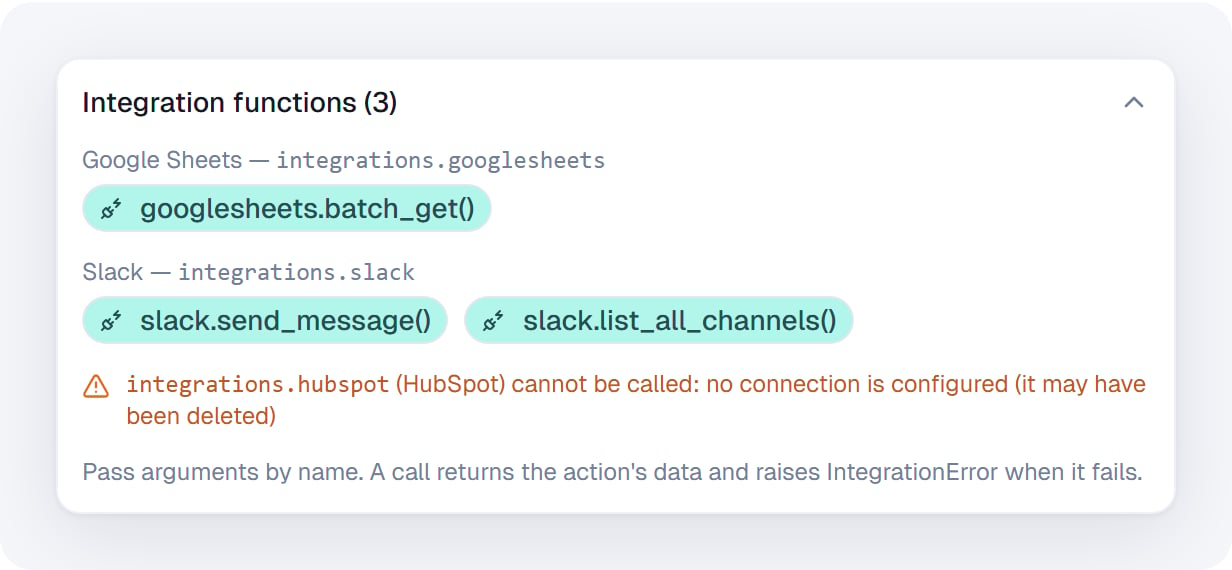
An app whose connection was removed: its functions are gone, and the panel says why.
skippedIntegrations output, and calling it raises IntegrationError with code not_connected.
What the step reports
Besides the usual Execute Code outputs, a step with bound apps adds:integrationCalls— how many calls the code made, how many failed, counts per function, and a list of the calls with how long each took.skippedIntegrations— apps that could not be bound, and why.
Limits
- 200 calls per run of the step.
- 5 MB of arguments per call, and 50 MB per result.
- Calls run one at a time, in the order your code makes them.
- Each call gets 2 minutes to answer; after that it raises
IntegrationErrorwith codetimeout.
Security
- The code never receives passwords, API keys, tokens or connection IDs. Calls run on the platform, on the connection you bound.
- The code can call only the actions enabled on this node, and only while the step runs.
- The sandbox the code runs in is created for each run and deleted afterwards.
Cost
The step is billed like any other Execute Code run. The app calls it makes are not charged separately.Related
Execute Code
The node this feature lives on — inputs, outputs, libraries.
LLM Integrations
Let a model decide which app actions to call.
Integration Action
Run one app action with fixed inputs.
Integrations
Connect accounts and manage connections workspace-wide.